
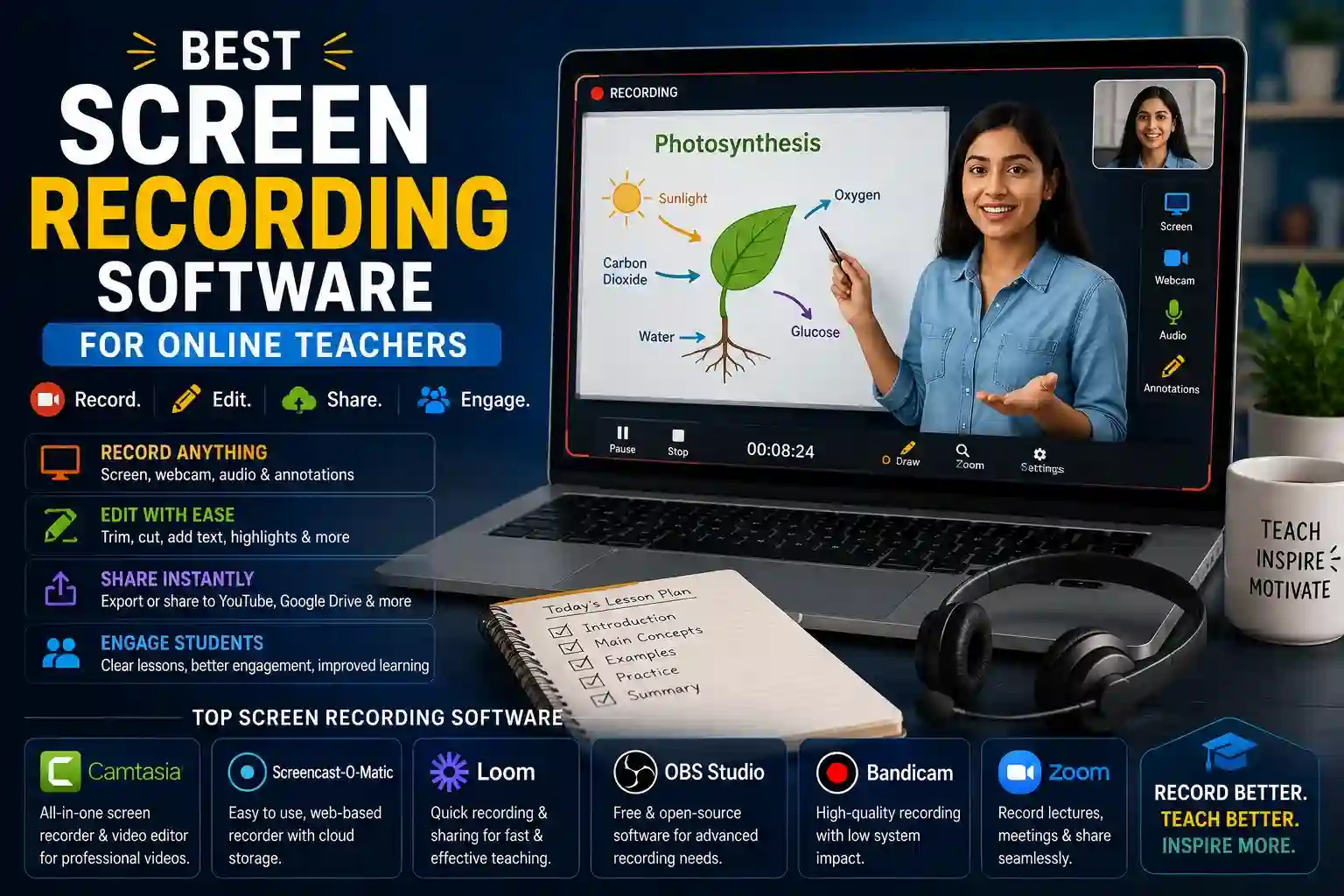
Creating effective video lessons requires more than pointing a camera at a screen and pressing record. Online teachers need software that captures screen activity cleanly, integrates webcam footage naturally, supports annotation during recording, and produces files that upload smoothly to course platforms without hours of post-production work.
The screen recording market has expanded significantly, with options ranging from free tools with surprisingly capable feature sets to professional-grade software built specifically for educational content. Knowing which features genuinely matter for teaching — versus which ones sound impressive but rarely get used — is what turns a software decision into a tool that actually improves how lessons are created and delivered.
Features That Matter Most for Teaching-Specific Screen Recording
General screen recording tools capture what’s on screen. Teaching-specific workflows demand considerably more. The difference between software that frustrates and software that becomes a natural part of lesson creation comes down to a specific set of capabilities that educators use repeatedly.
Features that separate adequate screen recorders from excellent ones for online teachers:
- Simultaneous screen and webcam capture with picture-in-picture positioning that can be repositioned or resized during editing — teachers who appear on screen while demonstrating software or slides see significantly higher student engagement than voiceover-only recordings
- System audio and microphone recording with independent volume control so presentation sounds, software demonstrations, and teacher narration can be balanced separately in post-production without destructive mixing during capture
- Real-time annotation tools including highlighters, arrows, spotlight effects, and zoom-in capability that draw student attention to specific screen areas during recording rather than hoping viewers notice the relevant detail
- Cursor enhancement that makes the mouse pointer visually prominent and highlights click actions — small cursor movements that are obvious to the presenter become invisible to students watching on smaller screens
- Automatic silence removal and filler word detection that trims dead air and hesitation sounds during editing, significantly reducing post-production time for teachers who don’t have professional editing experience
- Chapter and timestamp marking during recording that enables students to navigate directly to specific lesson sections rather than scrubbing through full recordings to find the content they need
- Direct upload integration with major learning management systems and video hosting platforms that eliminates the download-then-upload workflow adding unnecessary friction to every lesson publication
- Closed caption generation from recorded audio, making content accessible to students with hearing difficulties and improving comprehension for non-native speakers without requiring manual transcription
How to Match Screen Recording Software to Your Teaching Style
Teaching style significantly affects which software features deserve priority. A teacher delivering slide-based lectures has fundamentally different needs from one demonstrating software applications, teaching creative skills, or conducting interactive sessions for asynchronous viewing.
- Slide-based lecture teachers benefit most from software with strong presentation mode integration, the ability to record directly from within presentation applications, and smooth transition handling that doesn’t capture the brief desktop view between slide switches.
- Software and coding teachers need high-resolution capture at frame rates sufficient to show application animations and code editor features clearly, combined with zoom tools that let students see exactly where cursor clicks are landing during complex interface navigation.
- Creative skill instructors teaching drawing, design, or craft work often need extended recording sessions without file size limitations, combined with the ability to capture stylus pressure and tablet input accurately rather than just mouse pointer movement.
- Flipped classroom teachers producing replace-the-lecture content benefit from teleprompter integration or script display tools that allow natural delivery without visible reference materials, producing more polished recordings without additional takes.
- Assessment and feedback creators who record personalized video feedback on student work need quick-start recording capability — minimal setup between stopping one recording and starting the next — combined with easy sharing through direct links rather than downloaded file attachments.
- Teachers producing multilingual content require software that supports multiple audio track recording, allowing the same screen capture to carry different language narrations without re-recording the visual demonstration for each language version.
- Budget-constrained educators working in under-resourced school environments should evaluate free-tier options that offer unlimited recording length, basic editing, and direct YouTube upload without watermarks — several genuinely capable free tools exist specifically for this use case.
Practical Setup Decisions That Affect Recording Quality More Than Software Choice
Software selection matters, but the recording environment affects output quality in ways that even excellent software cannot fully compensate for.
Audio quality has the most significant impact on student experience. Viewers tolerate average video quality far more readily than they tolerate muffled, echoing, or inconsistent audio. A dedicated USB microphone positioned six to eight inches from the speaker produces dramatically better results than laptop microphones or headset microphones, regardless of which recording software is used.
Screen resolution and display scaling settings affect capture clarity in ways that aren’t always obvious during recording but become visible when students view content on larger screens. Recording at native resolution rather than scaled resolution, and ensuring presentation or application text is large enough to remain readable when compressed to standard video formats, prevents the most common legibility complaints in recorded lessons.
Recording length discipline matters more than software features for student completion rates. Lessons under twelve minutes maintain significantly higher completion rates than longer recordings. Software with built-in lesson segmentation tools encourages this naturally — but even excellent software won’t compensate for lessons that cover too much material without appropriate breaks in content.
Batch recording — capturing multiple lessons in a single session while energy and setup are consistent — produces more uniform quality across a course than recording individual lessons on different days with varying lighting and audio conditions. Teachers who block dedicated recording time weekly rather than recording reactively produce more consistent catalogs with less cumulative effort.
Conclusion
The best screen recording software for online teachers isn’t the one with the most features — it’s the one whose specific capabilities align with how you actually teach and how your students consume content. Start by identifying the two or three recording scenarios you encounter most frequently, then evaluate software against those specific requirements rather than comprehensive feature checklists. Combine your chosen software with a quality microphone and deliberate recording habits, and the resulting lesson quality will outperform expensive setups used carelessly every time.
Frequently Asked Questions
Q1: What is the most important feature to look for in screen recording software for teaching?
Audio control is the most impactful single feature — specifically the ability to record system audio and microphone on separate tracks with independent volume adjustment. Clean, clearly balanced audio determines whether students can comfortably watch an entire lesson or abandon it midway due to listening fatigue from poor sound quality.
Q2: Can free screen recording software produce professional-quality teaching videos?
Yes, for many teaching contexts. Several free screen recorders offer unlimited recording length, basic editing, webcam integration, and direct platform upload without watermarks. The limitations typically appear in advanced editing capability, annotation tool depth, and batch export features — areas that matter more as lesson volume and production expectations increase.
Q3: Should online teachers use screen recording software or a dedicated video course platform?
Screen recording software handles the capture and basic editing phase; video course platforms handle distribution, student management, and progress tracking. Most professional online teachers use both — recording with dedicated software for quality control and uploading to platforms for delivery. Evaluating them as either-or choices misunderstands their complementary roles in the content creation workflow.
Q4: How do I reduce background noise in screen recording sessions without expensive equipment?
Record in the quietest available space, hang fabric or blankets on reflective walls to reduce echo, and position the microphone close to your mouth while keeping it off-axis from plosive-heavy sounds. Many screen recording applications include built-in noise reduction filters that significantly improve recordings made in imperfect acoustic environments — enabling these filters during recording or post-processing reduces background noise without requiring acoustic treatment.
Q5: What video format should online teachers export recordings in for best compatibility?
MP4 with H.264 encoding is the most universally compatible format across learning management systems, video hosting platforms, and student devices. It balances file size and visual quality effectively for screen-recorded educational content. Avoid proprietary formats that require specific players — students encountering playback issues on their device abandon lessons rather than troubleshooting codec compatibility problems.